
GlideMouse · macOS
More from the mouse you already use.
Switch desktops with a side button. Hold to see your windows. Find a scrolling feel that suits you. GlideMouse makes everyday mouse controls easier to set up on your Mac.
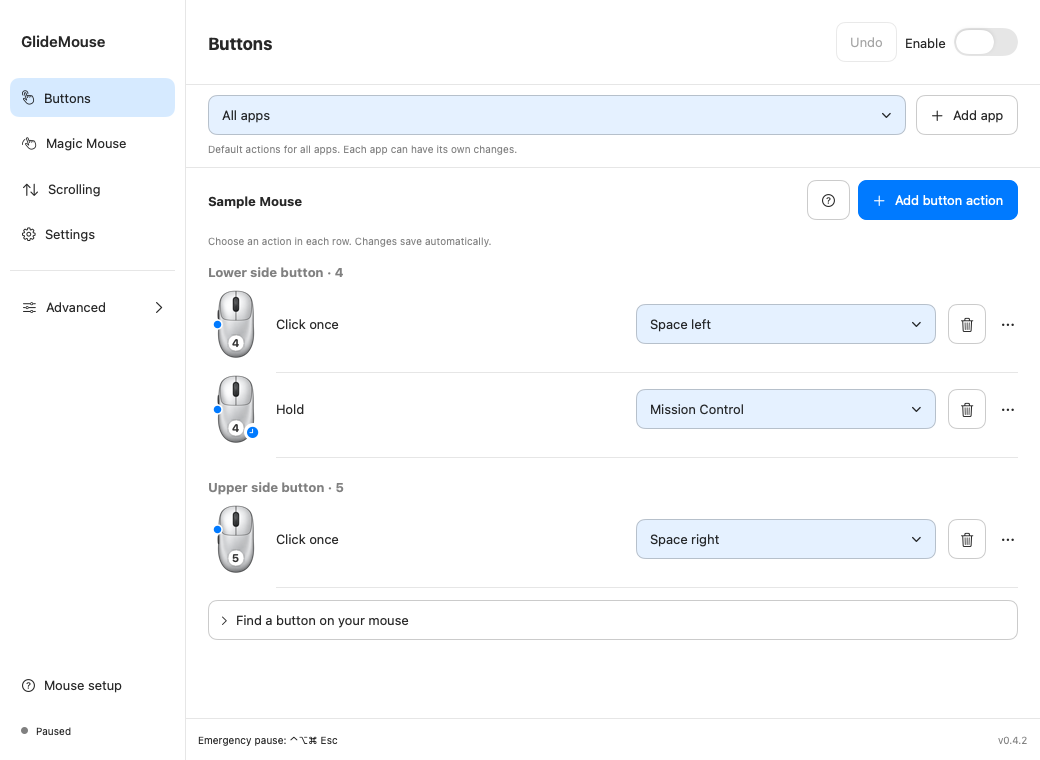
GlideMouse overview
See how it works
Choose an example to see the button press and the action together. You can change each action in GlideMouse.
Upper side button · click
Next desktop
Press once to move one desktop to the right.
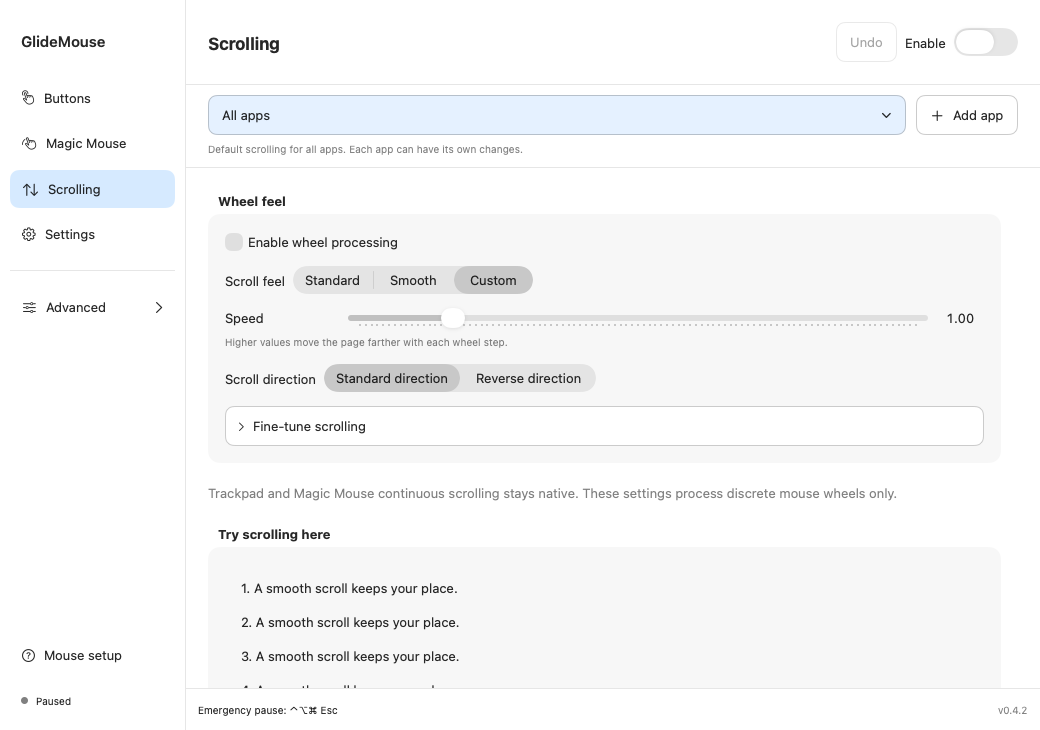
Adjust scrolling
Start with Standard or Smooth. Adjust speed and direction first; open the finer controls when you need them. Continuous trackpad scrolling stays native.
- Make each wheel step shorter or longer.
- Choose a direct response or softer movement.
- Turn momentum off for a more precise stop.
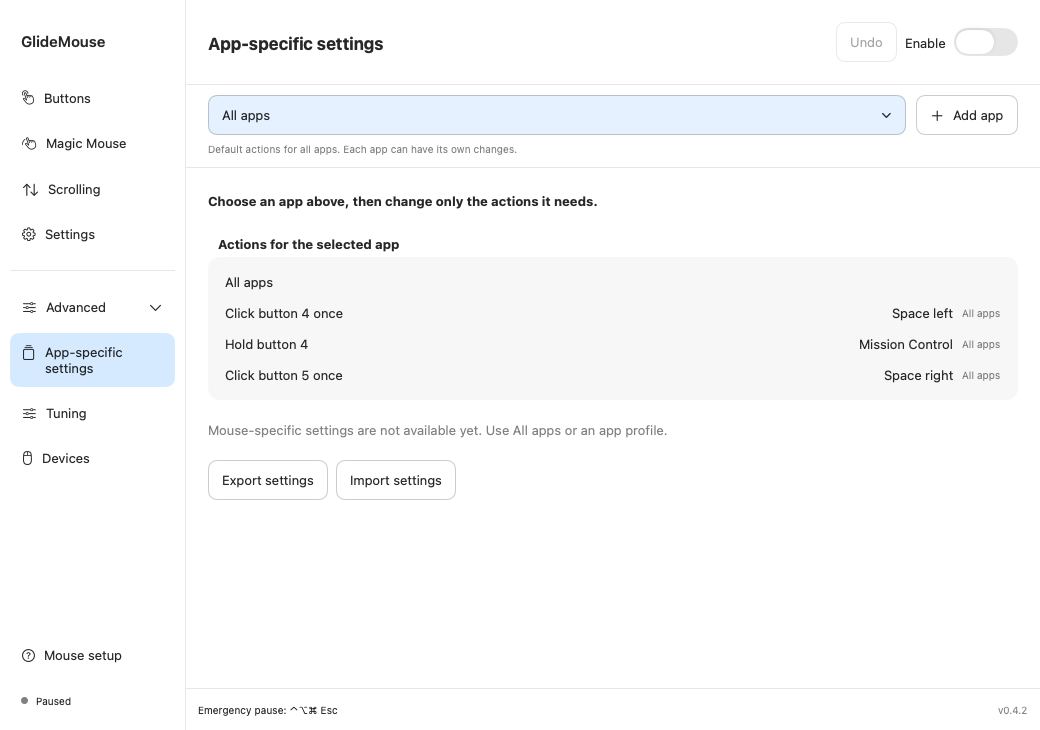
Settings for each app
All apps sets your defaults. Add Safari, your editor or another app, then change an action in its row. It saves only for that app; the other actions keep their defaults.
For example: lower-side click switches desktops normally, but goes Back when Safari is in front.
Remove an app setup whenever you like. It removes its GlideMouse settings; it does not uninstall the app. Undo brings the setup back.
Getting started
-
Connect and allow
Connect your mouse. Allow Accessibility for your chosen actions and Input Monitoring to recognize buttons and wheel input.
-
Add a button action
Click Add button action. Press your mouse button inside the capture box, or choose its number from the list.
-
Choose and try
Choose Click once, Double click or Hold, then pick an action. It saves automatically. Enable GlideMouse and try the button outside the capture box.
Download GlideMouse
Download GlideMouse, move it into Applications, and follow Mouse setup.
Release notesCommon questions
Will this work with my mouse?
Connect your mouse and use Mouse setup to identify its buttons. GlideMouse supports standard mouse buttons and scroll wheels. Some manufacturer-specific buttons may not be detected.
Why does it need two permissions?
Accessibility lets GlideMouse perform actions you chose. Input Monitoring lets it recognize button and wheel input. Mouse control works locally, and the app does not keep a log of what you type. Update checks contact the configured update host.
Can I get my normal mouse back?
Yes. Pause from the menu bar or press Control + Option + Command + Escape. Remove an action or use Undo to restore a recent change. Export your settings when you want a backup.
Do I need to set up every app?
No. All apps provides the default. Only add an app when you want a different action or scrolling feel while that app is frontmost.